A useless little trick.
Why
- Blender uses the numpad for viewport navigation. My keyboard isn’t full-size, so although Blender can emulate the numpad with the number row, some functions are still missing.
- Using a mouse for too long makes my hand and forearm tired, so I wanted to cut down on mouse time as much as possible. I mostly use a pen tablet instead of a mouse now, but in Blender,
Ctrl B(Bevel) still uses the mouse wheel to control segment count, and the Boxcutter add-on uses the wheel for array count too.
How I set it up
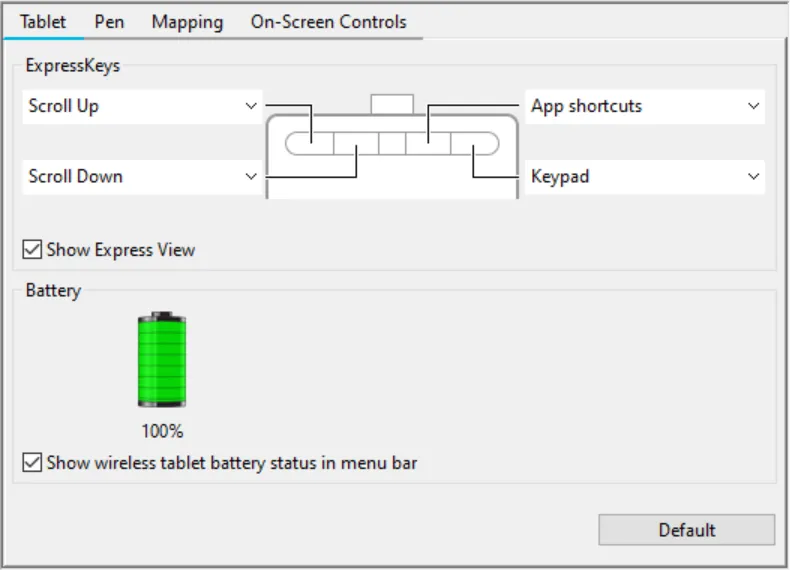
My tablet is a Wacom CTL-6100. It has four buttons on the top, so I started looking for the most comfortable mapping.
- Mouse wheel
This is easy: map the left two buttons toScroll UpandScroll Down.Update 10/08: this no longer works. Not sure whether it’s Windows or Wacom’s fault.
- Numpad
- Set a button to an on-screen control, and choose
Keypad.
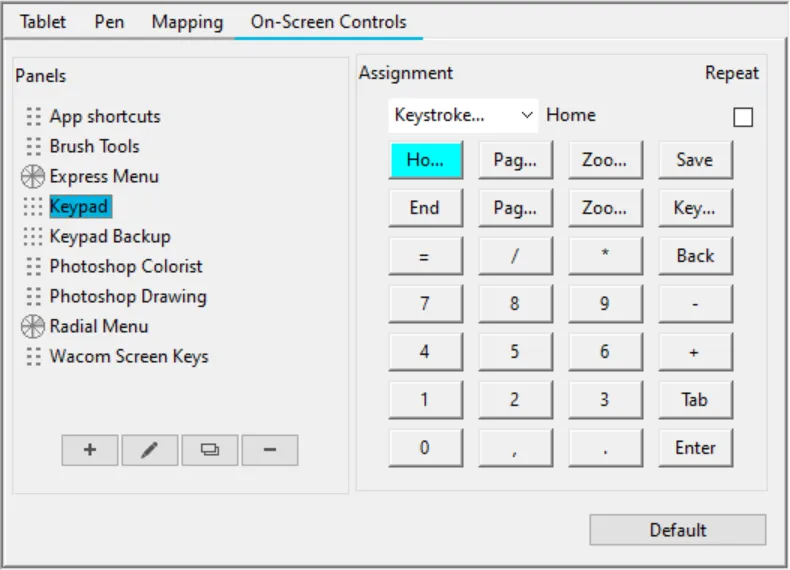
- But in Blender it didn’t control the view. I guessed this keypad was emulating the number row rather than the numpad.
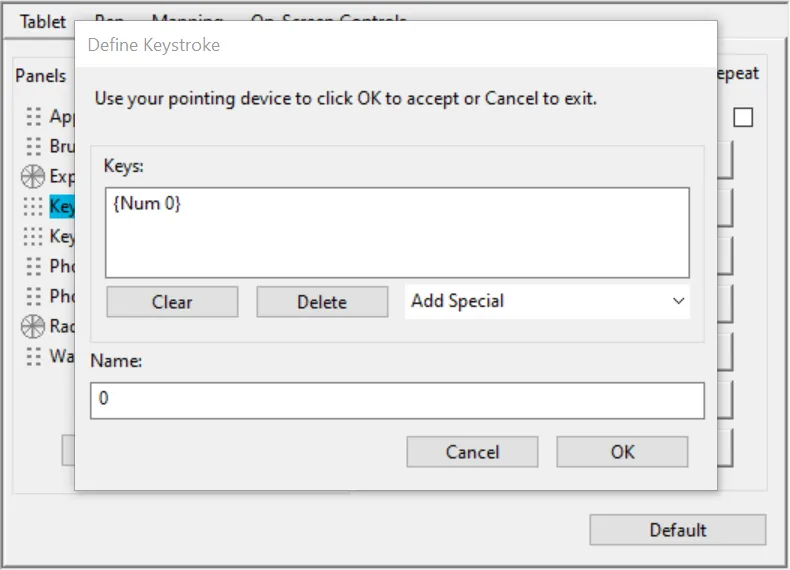
- I tried changing the mappings by manually entering
{Num 0}, but the input box only accepts key presses, not text. That means to mapNum 0, you basically need a full-size keyboard with a real numpad… - I tried the Windows 10 on-screen keyboard, but that one didn’t have a numpad either.
- Searched online.
- Found a workaround: press
Win R, typeosk, open the other on-screen keyboard, and enable the numpad in Settings (this one seems to work at a lower level). - Remap keys one by one.
- Set a button to an on-screen control, and choose
Result
It works, more or less.
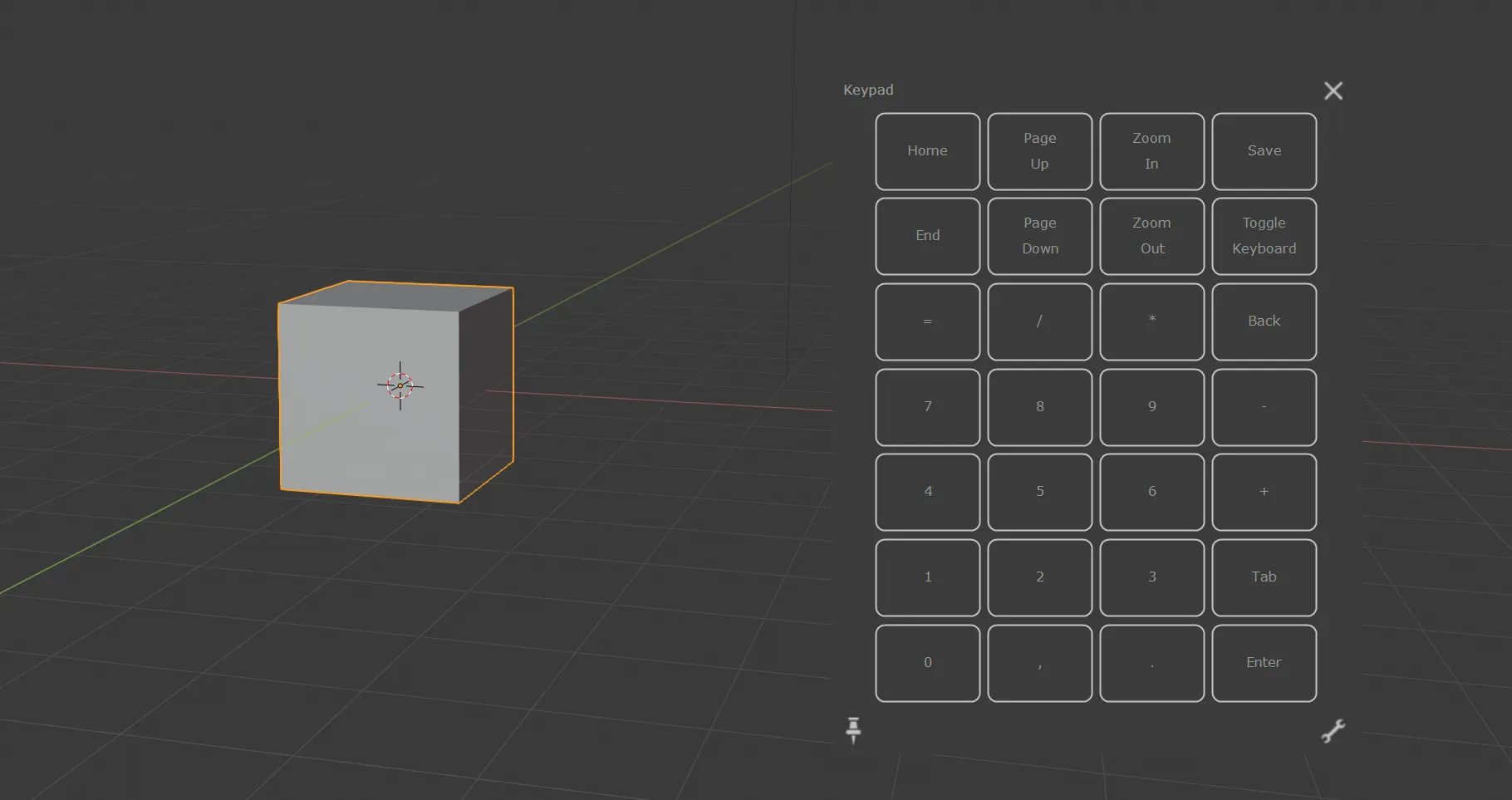
Press the button to bring up the on-screen keypad, and then Blender’s viewport works normally (which feels ridiculous…).
- Other tips
- In the tablet-specific Chrome profile, disabling Windows Ink can fix “can’t drag Chrome windows / can’t select text”, but it also makes it impossible to drag webpages with the pen tip. I mapped the lower side button on the pen to middle mouse button, then use that plus drag to scroll webpages.
- Enabling
Smooth Scrollingin chrome://flags can make scrolling animations smoother. At least, that’s the idea. I couldn’t really feel it, and it is still not as smooth as Firefox.
2019/10/08 update
Enable Emulate 3 Button Mouse
If you enable Emulate 3 Button Mouse in Blender settings, Alt + Click can emulate Middle Mouse.
Then Alt + Click rotates the view, Ctrl Alt + Click zooms, and Shift Alt + Click pans. That is much better than my old setup.
I learned this from Yansculpts - Sculpting In Blender For Beginners.
Comments