I never knew how to use this tool. The manual doesn’t explain it, and the tutorials I watched were not very detailed.
Today I ran into it again and decided to actually study it.
Here are my notes.
Update 09/14
In Blender 2.81 the Poly Build tool was changed: dragging on an edge creates a quad by default. Much nicer now.
Basics
First, remember: 3 vertices make a triangle, 4 vertices make a quad, and more than 4 vertices make an N-gon.
Pick any mesh, enter Edit Mode, delete all vertices, and select the Poly Build tool.
-
Fill faces
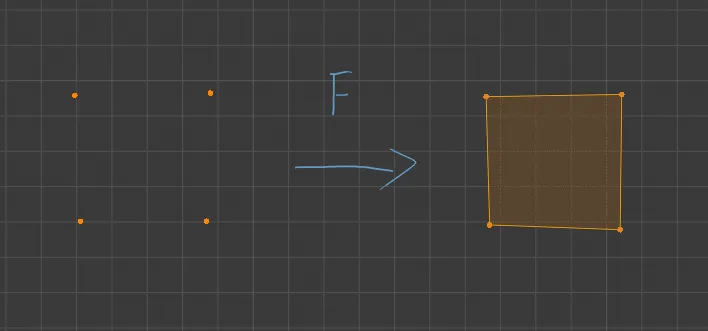
Click once to create a vertex. Click three vertices and pressFto make a triangle; click four vertices and pressFto make a quad.
-
Create a triangle
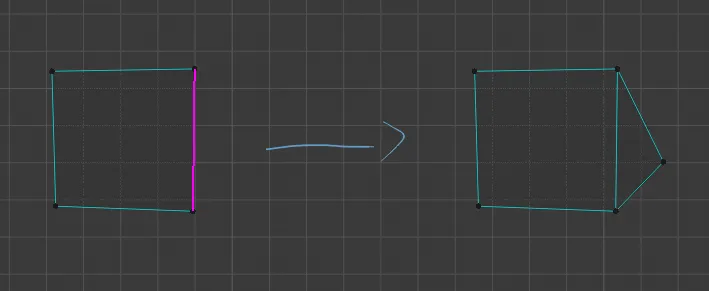
If the cursor is near an edge of a quad, that edge will be highlighted in magenta. Click, and the newly created vertex will connect to the two vertices of that edge, forming a triangle.
-
Create a quad
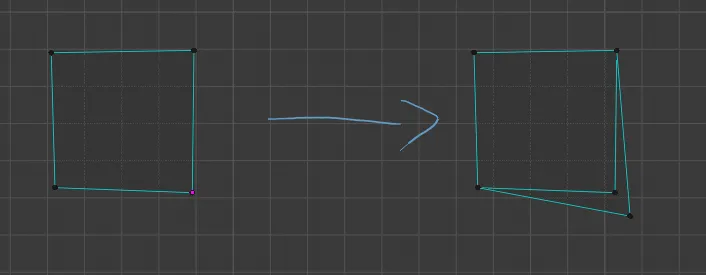
If the cursor is near a vertex of a quad, that vertex will be highlighted in magenta. Click, and the new vertex will connect to the adjacent vertex of the highlighted one, forming a quad.
(Here, “adjacent” means the vertices to the left/right along the polygon’s outer outline.)
-
Delete a vertex
Move the cursor near a vertex, holdAltand click to delete it. -
Split an edge
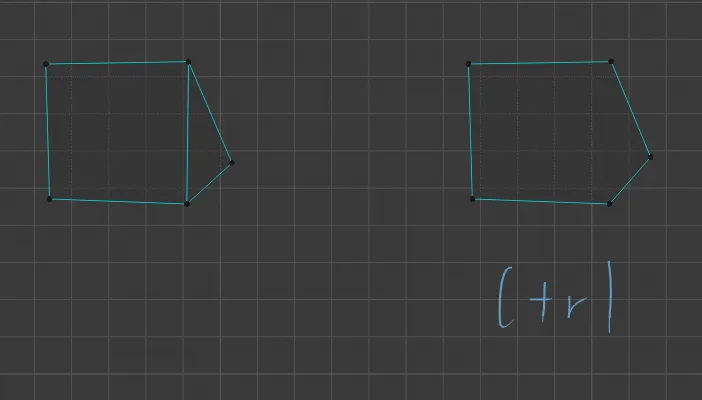
When creating triangles based on an edge, if you holdCtrl, it will split the highlighted edge. In other words, the new vertex will be created on the edge.
In the image below: the left is “create a triangle based on an edge”, the right is “split an edge”.
Usage
-
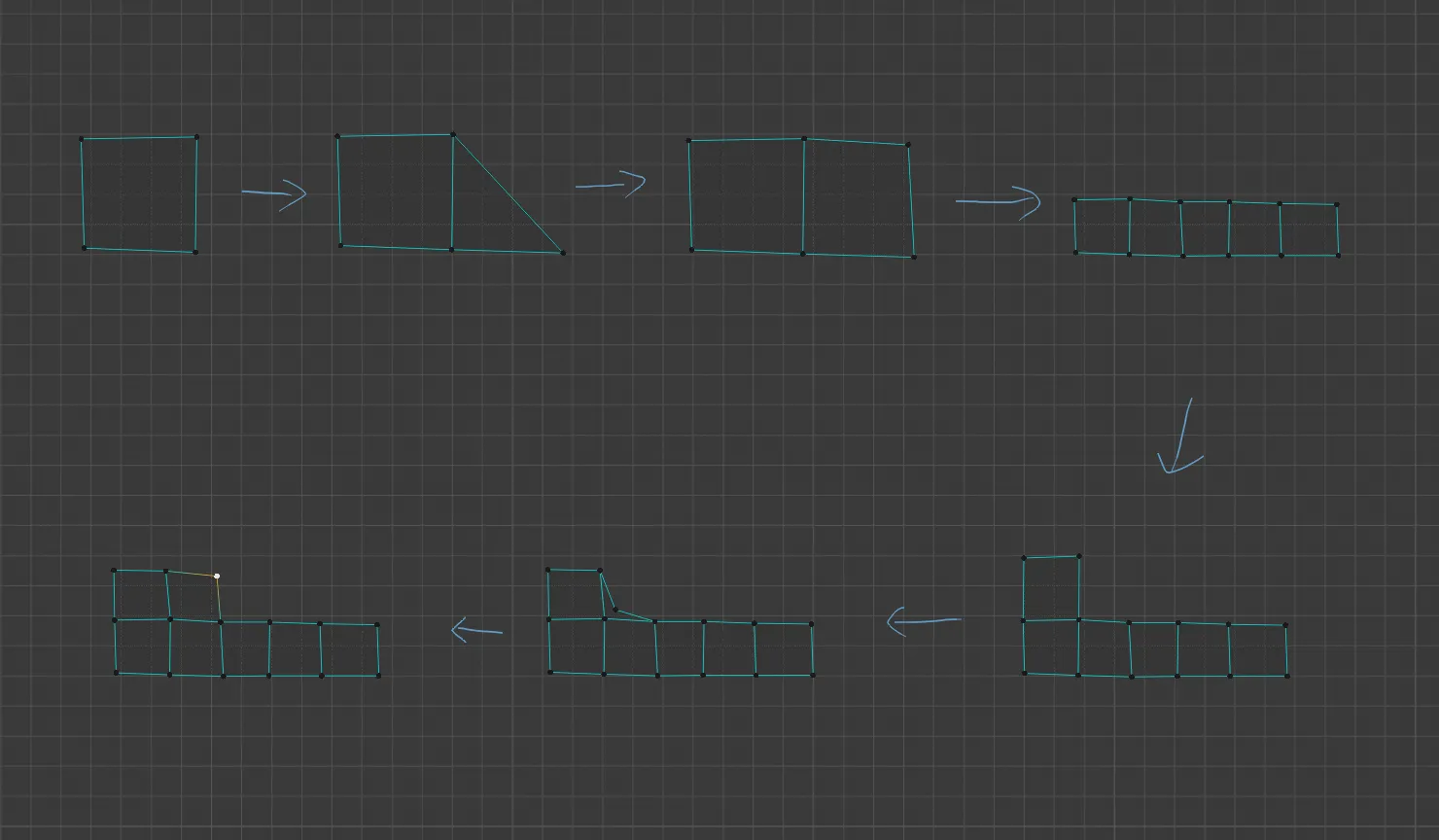
Create a quad, then drag along an edge to create new triangles.
Ctrl-drag on an edge to turn it into quads. Repeat to build a row of quads.
Create a quad above this row, then drag from a vertex to create quads directly.
-
Together with Mirror and Shrinkwrap modifiers, this can be used for retopology.
See: Using Poly Build Tool to Retopology in Blender 2 8 Tutorial
Comments