Eevee, Blender’s renderer introduced in 2.80, is one of its headline features: realtime preview and very fast renders, fast fast fast (how fast? If a frame takes more than 5 seconds I start doubting my computer; more than 10 seconds and I open Task Manager.)
But speed comes at the cost of accuracy. Eevee uses a lot of approximations to simulate what path tracers like Cycles produce. For example, SSS materials are basically done by blurring pixels.
So compared with Cycles, Eevee has quite a lot of settings. That is not necessarily a bad thing.
If you want the details, read the manual chapter Eevee. It explains how Eevee works, how to use it, and what its limitations are.
(Enough rambling, let’s get to the point.)
I’ve been following Ducky 3D tutorials recently. A couple of days ago I watched Blender - My Eevee Settings (Blender 2.8), where he shares his Eevee settings. It was very useful.
So combining the video, the comments, and a bit of my own experience, I’m writing this down. Hopefully it helps.
The image below shows Blender’s default Eevee settings:
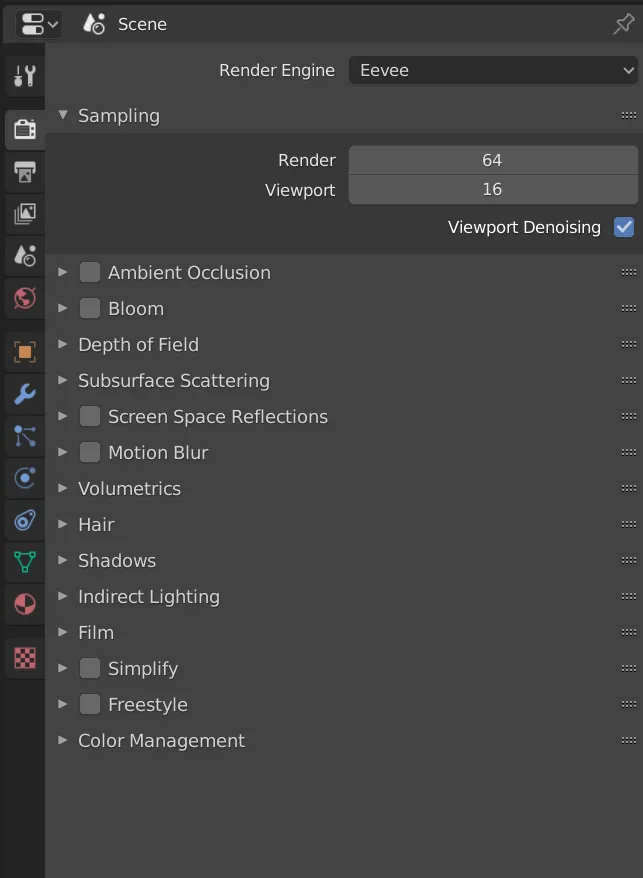
Let’s go through them one by one.
-
Ambient Occlusion
Turn it on
Distancecontrols AO strength. It is an easy way to add depth to your scene or model. -
Bloom
Turn it on
Threshold: objects below this brightness won’t bloom
Radius: bloom radius
Intensity: bloom strength -
Depth of Field
Leave it alone
A handy trick is to use an Empty as the focus target, then tweak aperture in the camera settings. -
Subsurface Scattering (SSS)
Leave it alone
Useful for slightly translucent materials like leaves, jade, and skin. -
Screen Space Reflections
Turn it on (important)
(Note: because of how Eevee works, reflections and refractions are quite limited. See the manual.)
Refraction: enable it here, and also enable refraction inMaterial > Settings, otherwise it won’t work
Half Res Trace: disable it. It exists to save resources.
Trace Precision: the default is too low; set it to 1. If you see glitches, dial it back a little
Max Roughness: I still am not sure how useful this is; I only saw a comment recommending 0.85 to “get nice diffuse reflections” -
Motion Blur
Enable if needed
Eevee only supports camera motion blur, so it only works when the camera moves.
Shuttercontrols shutter time. A higher value means stronger motion blur. -
Volumetrics
Keep the defaults
EnableVolumetrics Shadows. -
Hair
I have not used it. -
Shadows
Important
Eevee uses shadow maps to create direct shadows from light sources. (From the manual)
EnableHigh Bitdepthto improve shadow quality
EnableSoft Shadowsto improve shadow quality
In Method, ESM and VSM are two algorithms: the former is faster, the latter looks better. Pick as needed.
Cube Size: larger values give higher shadow precision. Adjust as needed.
These two options are optional. If your shadows look bad, try tweaking them.
-
Indirect Lighting
Used when baking indirect lighting for Eevee light probes. I have not used it much. -
Film
EnableTransparentto remove the background and avoid cutouts. -
SimplifyandFreestyleline rendering: skipping these here. -
Color Management
(Strictly speaking, this is not Eevee-specific, and it also confused me for a long time. Once I fully understand it, I’ll probably write a separate post.)
Treat it as a simple post-process pass: tweakLookfor contrast,Exposurefor brightness, andGammahowever you like.
(Gamma is complicated in general, but Blender’sGammahere is mainly for artistic adjustment. If you want the real explanation, see 韩世麟 - Gamma校正与线性工作流入门讲解)2019/11/19 update
Han Shilin recommended a creator in a post: 韦找谁. He works in film and TV and posts a vlog every day. Watching his videos cleared up some of my questions about color management.
Keywords: Gamma, ACES, color checker
I originally planned a short summary of Ducky’s video, but it turned into something much longer and wordier.
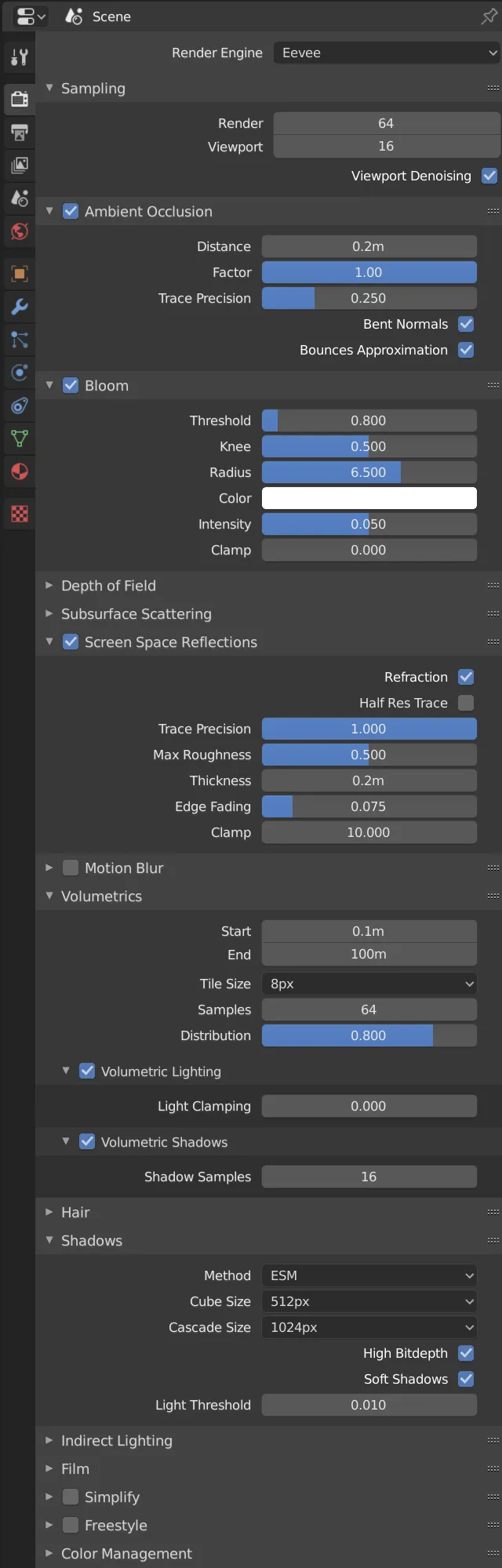
Anyway, here is the whole thing in one image: the Eevee settings Ducky recommends:
(Time flies. It feels like not long ago, but the previous post was already almost three weeks earlier.
(Some time ago I joined the Blender manual translation group and contributed a tiny bit to Blender localization.)
Comments