Linuxで複数のTelegramを動かす方法を記録する。
2020/07/28 更新:
デスクトップ版Telegram 2.2でマルチアカウント切り替えに対応した
最初に思いついたのは、tgの実行ファイルを複数ダウンロードして別フォルダに置くこと(Windowsではそうしていた)。
でもLinuxではうまくいかなかった。
調べたらこれを見つけた: Github - Add multiple accounts in Telegram Desktop [Linux | MacOSX | Windows]
tgの -workdir パラメータでユーザーデータの保存先を分ける方法。
詳細手順:
- tgのアカウントデータはデフォルトで
~/.local/share/TelegramDesktop/にある。この下にusernameフォルダ(例:~/.local/share/TelegramDesktop/username/)を作り、そのアカウントのデータを置く .desktopの起動ファイルを作り、-workdirを上のusernameフォルダに向ける- ファイルの場所は特に制限はなさそうだが、規約的には
~/.local/share/applications/に置くのが推奨されていた - 起動ファイル内容:
[Desktop Entry]Version=1.0Name=Telegram MyUsernameComment=Official desktop application for the Telegram messaging serviceTryExec=/opt/Telegram/TelegramExec=/opt/Telegram/Telegram -workdir /home/{{your_user}}/.local/share/TelegramDesktop/username -- %uIcon=telegramTerminal=falseStartupWMClass=TelegramDesktopType=ApplicationCategories=Network;InstantMessaging;Qt;MimeType=x-scheme-handler/tg;Keywords=tg;chat;im;messaging;messenger;sms;tdesktop;X-GNOME-UsesNotifications=trueX-Desktop-File-Install-Version=0.23実行すると、tgのログイン画面が出る。
成功
と思ったらログインできない。アカウントを入れたあと internal server error が出る。
調べてもよく分からない。
.desktop の TryExec と Exec を、ダウンロードしたtg実行ファイルに変えて動かしたら使えた。
ただ翌日、パラメータを元に戻しても使えた
たぶんネットワークの問題だったかも
tg標準の .desktop ファイルも見てみた:
$ cat /usr/share/applications/telegramdesktop.desktop
[Desktop Entry]Version=1.0Name=Telegram DesktopComment=Official desktop version of Telegram messaging appTryExec=telegram-desktopExec=telegram-desktop -- %uIcon=telegramTerminal=falseStartupWMClass=TelegramDesktopType=ApplicationCategories=Chat;Network;InstantMessaging;Qt;MimeType=x-scheme-handler/tg;Keywords=tg;chat;im;messaging;messenger;sms;tdesktop;X-GNOME-UsesNotifications=trueこれを参考に、自分の .desktop の Comment を少し修正した。
最終効果:
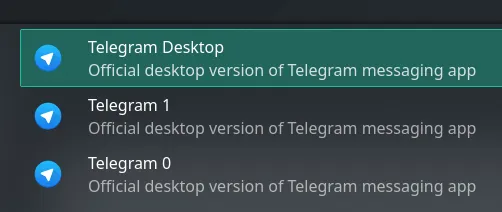
コメント