This post shows a quick way to switch languages in Blender. The method comes from a BlenderCN video: 【Blender小技巧】001_快速切换语言对比学习.
- Create a new area wherever you like in the UI. For splitting and merging areas, see the Chinese manual: 用户界面>>>区域>>>拆分/合并
For example, I pulled out an area below the Outliner.
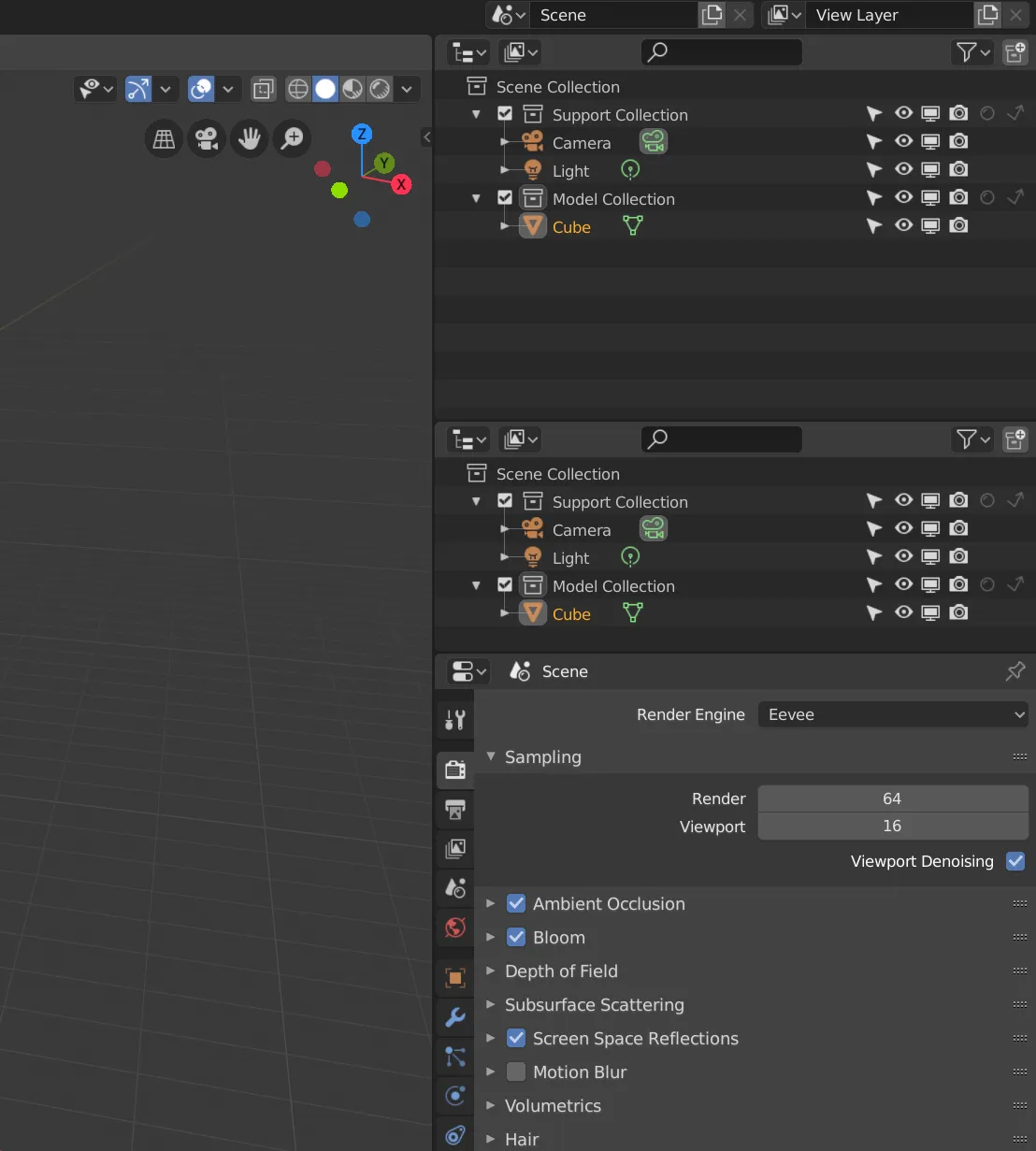
- Change this area to User Preferences.
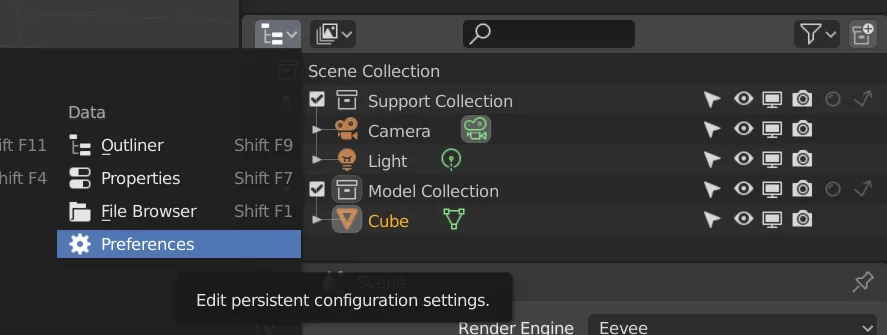
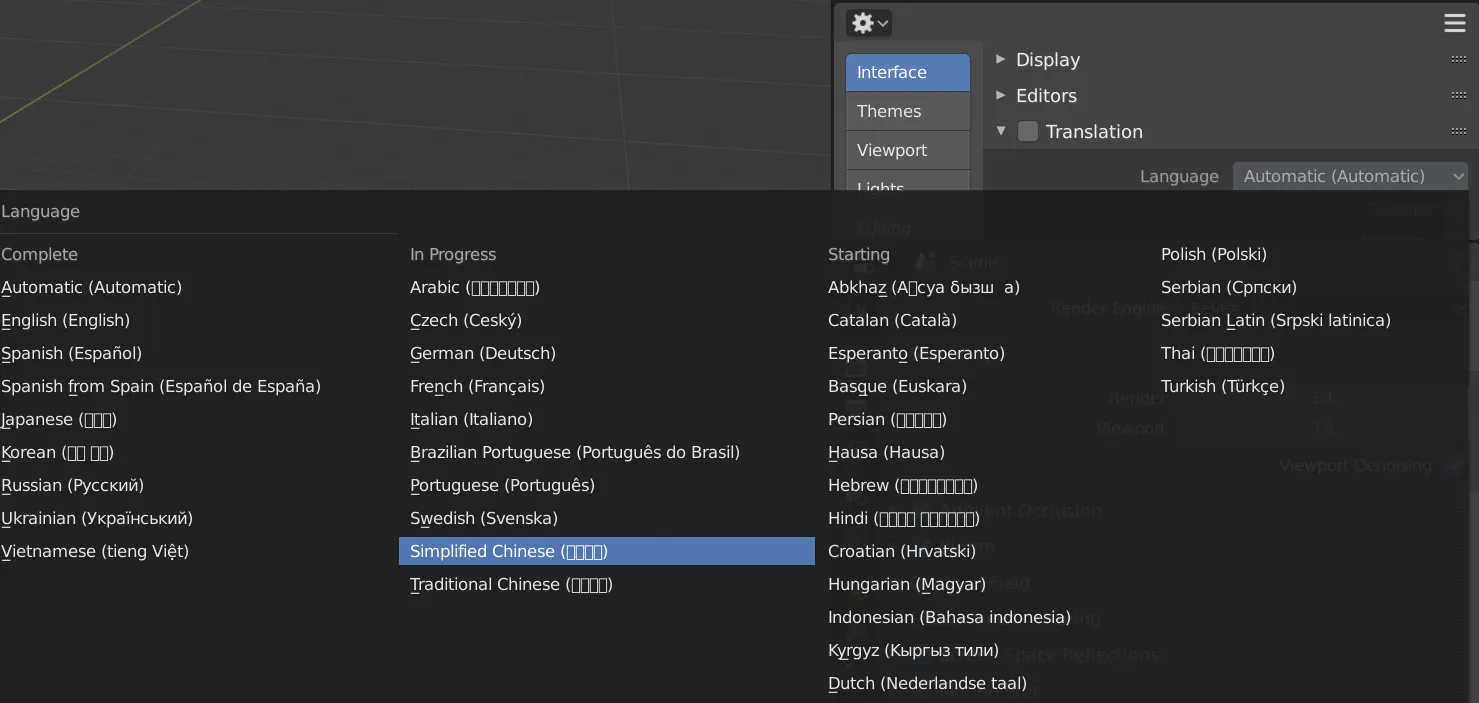
- Under
Interface >>> Translation, setLanguagetoSimplified Chinese.
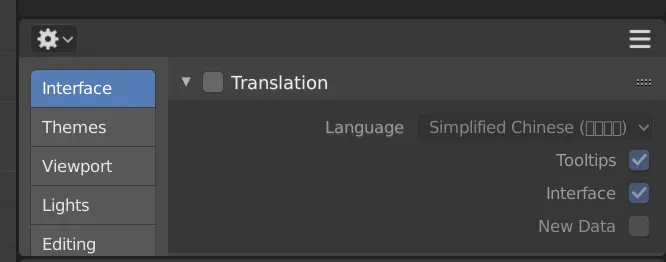
- Check
InterfaceandTooltipsso Blender translates the UI and tooltips. Do not checkNew Data(it can cause issues).
Then you can collapse the translation menu and shrink the area so it stays out of the way.
- Click
Translationonce to enable translation (Chinese UI).
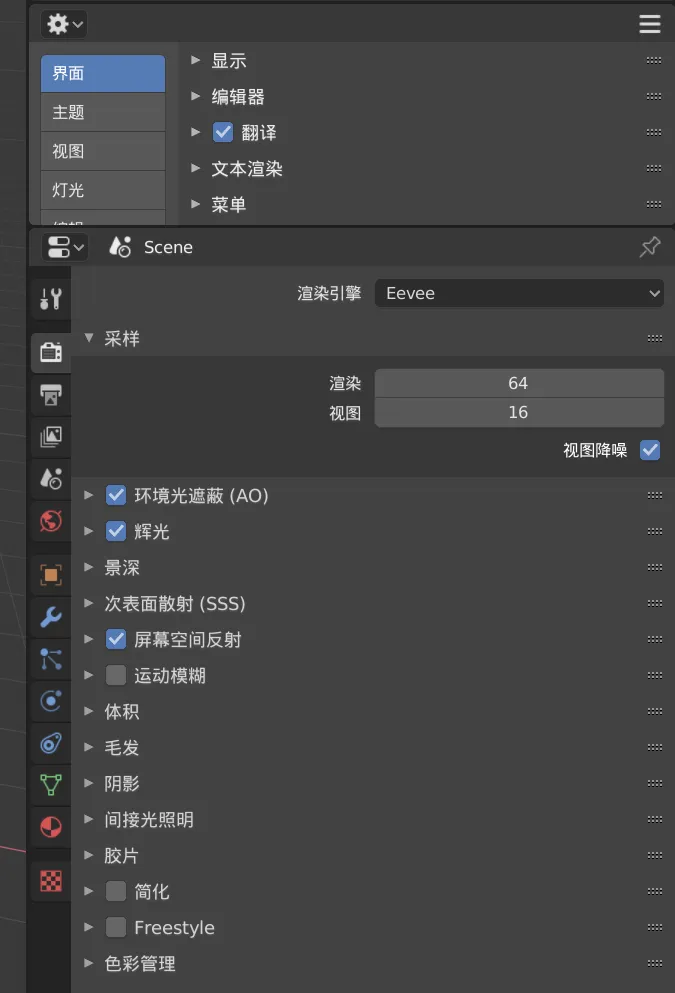
- Click it again to disable translation.
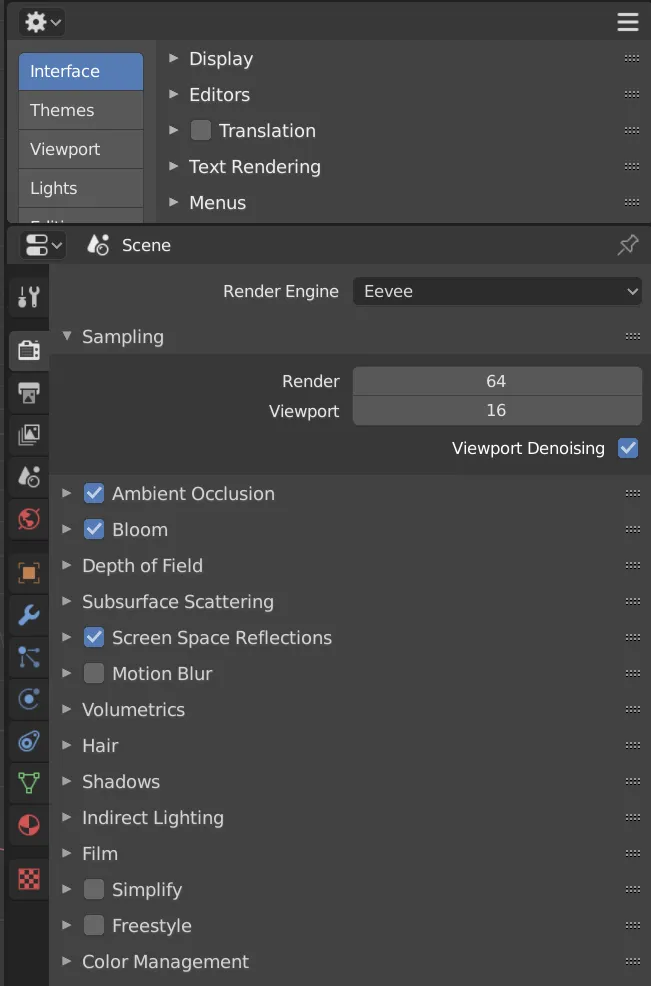
You can also enable only Tooltips in Translation, keeping the UI in English. If you don’t understand something, hover over it and you’ll see a Chinese explanation.
That makes it easier to follow English tutorials.
Using English software isn’t hard. You just need to learn the domain-specific terms and get used to them over time.
Watching foreign creators on YouTube often comes with auto-generated subtitles; even if you don’t fully understand them, you can follow along with the English UI and learn from their workflow. Watch enough and it clicks.
Hope this helps.
Comments