Preface
When cloning projects with GitHub Desktop, I only got a few tens of KB/s. A 30MB repo took forever.
So I looked for a solution. I thought it would be simple, but it took way longer than expected.
So I’m writing it down.
-
First I looked in GitHub Desktop settings. Nothing.
-
Searched online (in English first). Found a few approaches, but they were all about http/https proxies: How Can I Configure GitHub Desktop/Windows to Work with a Proxy?
What I needed was a socks5 proxy. Not exactly the same, but I tried random settings anyway. Didn’t work. -
Random attempts: replace
httpwithsocks, and run:git config —global socks.proxy socks://127.0.0.1:1080
git config —global socks.proxy socks5://127.0.0.1:1080
git config —global socks5.proxy socks://127.0.0.1:1080
git config —global socks5.proxy socks5://127.0.0.1:1080 -
None worked.
-
It’s actually very simple, but I’m too noob…
-
Then I realized: foreigners need proxies inside corporate intranets, which is different from our situation. I should search for Chinese tutorials.
-
And yep, there are plenty.
-
Found this: X先生说:通过 SS 代理加快 GitHub Clone 速度
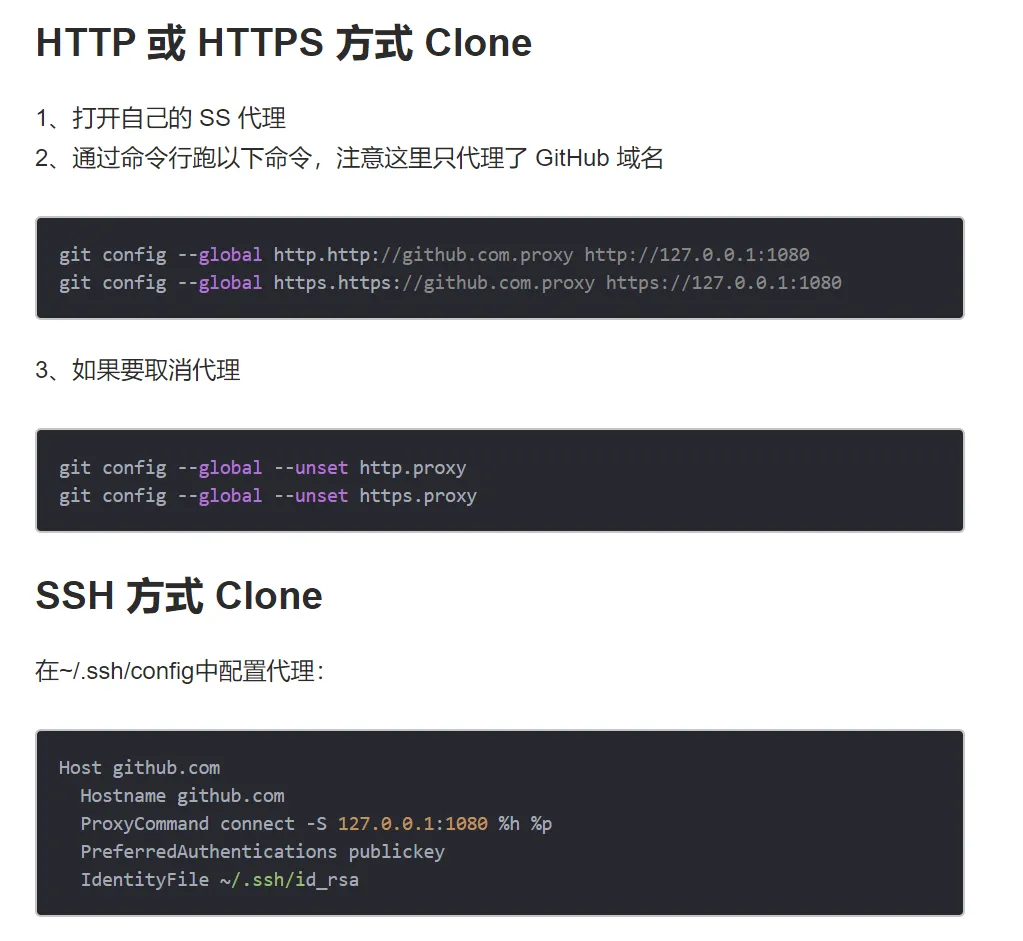
- In the first black box:
http://127.0.0.1:1080 - Turns out this is all you need. Tears of no skill
- In the first black box:
My Solution
Open C:\\users\\username\\.gitconfig, and append:
[http] proxy = <http://127.0.0.1:1080>Then GitHub Desktop will use your local proxy.
08/18 update
I ran into another issue a couple days ago: cloning git:// didn’t work. After half a day of trial and error, my config is now:
[http] proxy = socks5://127.0.0.1:1080[https] proxy = socks5://127.0.0.1:1080[git] proxy = socks5://127.0.0.1:1080(again, tears of no skill
Comments