Notes on running multiple Telegram instances on Linux.
2020/07/28 update:
Telegram Desktop v2.2 supports multi-account switching now.
My first thought was to download multiple tg binaries and put them in different folders (that’s how I did it on Windows).
But that doesn’t work on Linux.
I searched online and found this: Github - Add multiple accounts in Telegram Desktop [Linux | MacOSX | Windows]
The idea is to use Telegram’s -workdir argument to specify where user data is stored.
Detailed steps:
- Telegram account data is stored under
~/.local/share/TelegramDesktop/by default. Create ausernamefolder there, e.g.~/.local/share/TelegramDesktop/username/, to store data for that account. - Create a
.desktoplauncher file and set the-workdirargument to point to theusernamefolder above. - The file location doesn’t really matter, but the guide suggests putting it under
~/.local/share/applications/. - Launcher file content:
[Desktop Entry]Version=1.0Name=Telegram MyUsernameComment=Official desktop application for the Telegram messaging serviceTryExec=/opt/Telegram/TelegramExec=/opt/Telegram/Telegram -workdir /home/{{your_user}}/.local/share/TelegramDesktop/username -- %uIcon=telegramTerminal=falseStartupWMClass=TelegramDesktopType=ApplicationCategories=Network;InstantMessaging;Qt;MimeType=x-scheme-handler/tg;Keywords=tg;chat;im;messaging;messenger;sms;tdesktop;X-GNOME-UsesNotifications=trueX-Desktop-File-Install-Version=0.23Run it and you should see the Telegram login screen.
Success
Then I found I couldn’t log in: after entering the account, it showed internal server error.
I looked around but didn’t really understand it.
I replaced the .desktop file’s TryExec / Exec with the downloaded Telegram binary, and it worked.
But the next day, changing it back also worked.
Might have been my network.
I looked at the original Telegram .desktop file:
$ cat /usr/share/applications/telegramdesktop.desktop
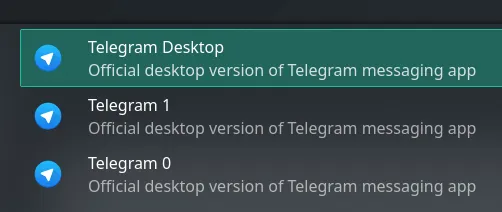
[Desktop Entry]Version=1.0Name=Telegram DesktopComment=Official desktop version of Telegram messaging appTryExec=telegram-desktopExec=telegram-desktop -- %uIcon=telegramTerminal=falseStartupWMClass=TelegramDesktopType=ApplicationCategories=Chat;Network;InstantMessaging;Qt;MimeType=x-scheme-handler/tg;Keywords=tg;chat;im;messaging;messenger;sms;tdesktop;X-GNOME-UsesNotifications=trueBased on that, I tweaked the Comment field in my .desktop file.
Final result:
Comments